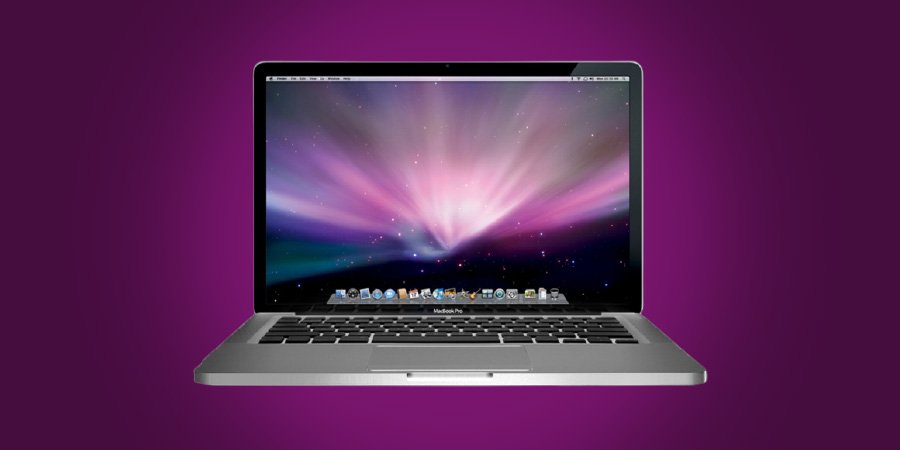
We often have a topic of discussion, how to extend a laptop’s battery but what if we want to quickly drain the laptop battery.
Yes, many times laptops work slowly when they are on battery, the reason could be any, but you want to make them run faster so you can perform your tasks quickly.
How To Make Laptop Run Faster On Battery?
Well, running slow is a feature of a laptop that can be adjusted by Laptop settings, so drill down and explore How To Make Laptop Run Faster On Battery.
Let’s start!
Why Does a Laptop Run Faster On Direct Power?
Running slower is a feature do you think really is? Well, different factors are affecting this feature.
when people use software that is heavier than the power of a processor, then this may happen. The laptops are configured to consume less power when on battery, and slower performance on the battery is intentional because you are using the power for doing other tasks.
It is also a technological fact that a laptop works faster when on AC power, but there is a way to connect it to AC power. Try not plugging into AC power directly as it is configured to reduce the performance e.g battery power – 30fps, and ac power – 70-80fps, this combination may be damaging.
So, to save on power, and to lengthen battery time it is better to shut down and close all unnecessary files, and folders when not doing any task.
The three most power-hungry characteristics are mentioned below.
[su_list icon=”icon: check-circle” icon_color=”#18932D”]
- CPU processing speed – It is a known fact that a faster CPU demands more power. In many laptops, most CPUs are the low-power variety, and that is why they work slower when configured to do so.
- GPU processing speed – GPU is known as the most power-hungry component, and it is designed to work better on direct power.
- Display brightness – Battery can consume fastly but it is dependent on the type of display. Apart from GPU, it is also one of the more power-hungry parts. The laptop reduces power usage When dimming the display.
[/su_list]
How To Make Laptop Run Faster On Battery?
Adjust the screen brightness, power options, the settings of windows, and much more. Whenever you use your device carefully it automatically performs better on battery.
1.) Adjust Your PC’s Power Options:
Do you want to enjoy a power boost? Then try adjusting power options when a laptop is plugged into the main power. Here are a few steps to do so.
[su_list icon=”icon: check-circle” icon_color=”#18932D”]
- Firstly click Start
- Then click on Control Panel
- After this go to Hardware and Sound
- And at the last select Power Options
[/su_list]
A window having Select a power plan will show on the screen. Here click ‘Show additional plans. Then select the ‘High-performance option, and you are ready to enjoy maximum speed. The battery will drain faster when you are not taking care of the usage of your laptop.
2.) Windows settings:
To do windows settings you have to follow some steps otherwise it is not possible. Let’s go straight to the steps.
Open the Windows 10 settings app, the first step is to click on System. When it opens select Power & sleep, and then click ‘Additional power settings. Now you can directly go to the ‘Control Panel Power Options.
You can utilize one or more power plans from which“Balanced” is typical. So, always try to balance performance and battery life. These plans perform different functions. You can maximize battery life by using one plan and also maximize performance by using the other.
This time select the current plan which is equipped with various functions. You can select sleep or hibernate settings. You can also change advanced power settings as per your need. But keep in mind content varies depending on the laptop. You can control a wide assortment of settings that will affect the power usage of your laptop. You can even find settings regarding video playback when you examine settings deeply.
3.) BIOS/UEFI Settings:
You can also see many power-related settings in the laptop’s BIOS or UEFI settings, but they are not always the same, they may vary between manufacturers and models of different laptops.
To directly enter BIOS or UEFI settings by rebooting OR instruct Windows to reboot. Power management settings or APC (Advanced Power Management Control) settings are the most widely used settings. This tune is exactly how you want your computer to behave.
To optimize for power usage and performance, you can also go for a power/performance trade-off. But when doing these settings always remember to plug in to recharge the battery often.
How To Increase A Laptop’s Battery Health For Faster Performance?
We have done different settings to manage the battery of a laptop, now it is time to cover how we can enhance the laptop’s battery health. Read below.
1.) Windows Battery Performance Slider:
To increase the battery life of your laptop the first and foremost method is the
battery performance slider of Windows 10. This will help to group all the settings affecting battery life into easy-to-understand categories.
[su_list icon=”icon: check-circle” icon_color=”#18932D”]
- The first is Best Performance mode: This is made for those who want trade-off battery runtime for speed and responsiveness. In this mode, Windows won’t stop background apps, but they will remain open.
- The second we are going to discuss is better performance mode. The excellent thing about this mode is that it prioritizes power over efficiency by limiting resources for other unused apps.
- Now we come across Better Battery mode. The name tells the story: it delivers longer battery life and is labeled “Recommended” on the laptop.
- Battery Saver mode: This mode will appear when the laptop is unplugged, and also reduces the display brightness. This will also stop the syncing, prevent Windows update downloads, and most importantly suspend most background apps.
[/su_list]
2.) Simplify Your Laptop’s Workflow:
To save on more battery always enable Battery Saver, or try to adjust your laptop use especially when doing less-power intensive tasks e.g. writing or playing a local video.
You can also adjust the laptop use, just choose battery-conserving ways, and make it possible to stick to one app at a time while you are doing single-task
When watching any video on Youtube, enable Airplane mode in Windows, and turn off Wi-Fi and Bluetooth when there is no need for them. Enabling this mode will help you to not only save battery but also keep you away from updaters and push notifications.
3.) Check And Close Apps That Use More Power:
It has been noticed that laptop performance lessens down because some apps and processes chew through battery life. The settings app will help to find energy-hogging programs.
From the Windows 10 search bar, it is icing on the cake to get the list of power-hungry apps and try to close the app that you rarely use.
Next, go to the Task Manager’s Startup tab and see which apps start when the PC starts. To keep the battery running for a long time, explore safe ways to disable apps or processes from the search bar of the laptop, and you can disable them to save on power.
3.) Adjust Graphic And Display Settings:
Remember a powerful graphics processor only runs graphics-intensive apps. To do other tasks get more efficient on-CPU silicon (for graphics processing). Go to the GeForce control panel to find Program Settings if the laptop is running with Nvidia GeForce graphics. From the program settings tab assign apps to specific graphics-processing chips accordingly.
4.) Keep An Eye On The Battery Health:
All batteries can lose charging capacity over time and need to be replaced after some years of usage, so it is necessary to keep stock of a battery’s health. Just click the battery icon to display the battery status. If by clicking you see “Replace Now”, or “Service Battery” it means to go and buy a new one.
Conclusion:
[su_note note_color=”#e2f0fc”]Many times when a laptop is connected to the internet, it runs slower when you are on battery instead of direct AC power.
If it also happens to you, no need to worry or browse the internet for the answer. Read the above-mentioned ways and find effective solutions on How To Make Laptop Run Faster On Battery. Hence, this way, you would be able to make your laptop run the way you want.[/su_note]